> ## Documentation Index
> Fetch the complete documentation index at: https://stackone-hub-mintlify-faq-auth-1778743786.mintlify.site/llms.txt
> Use this file to discover all available pages before exploring further.
# Hibob Time-off Webhook Configuration
> To successfully configure the webhook and send the event on action of time-off
The following guidance assumes you have Admin privileges for your Hibob
account.
## To Get External Trigger Token
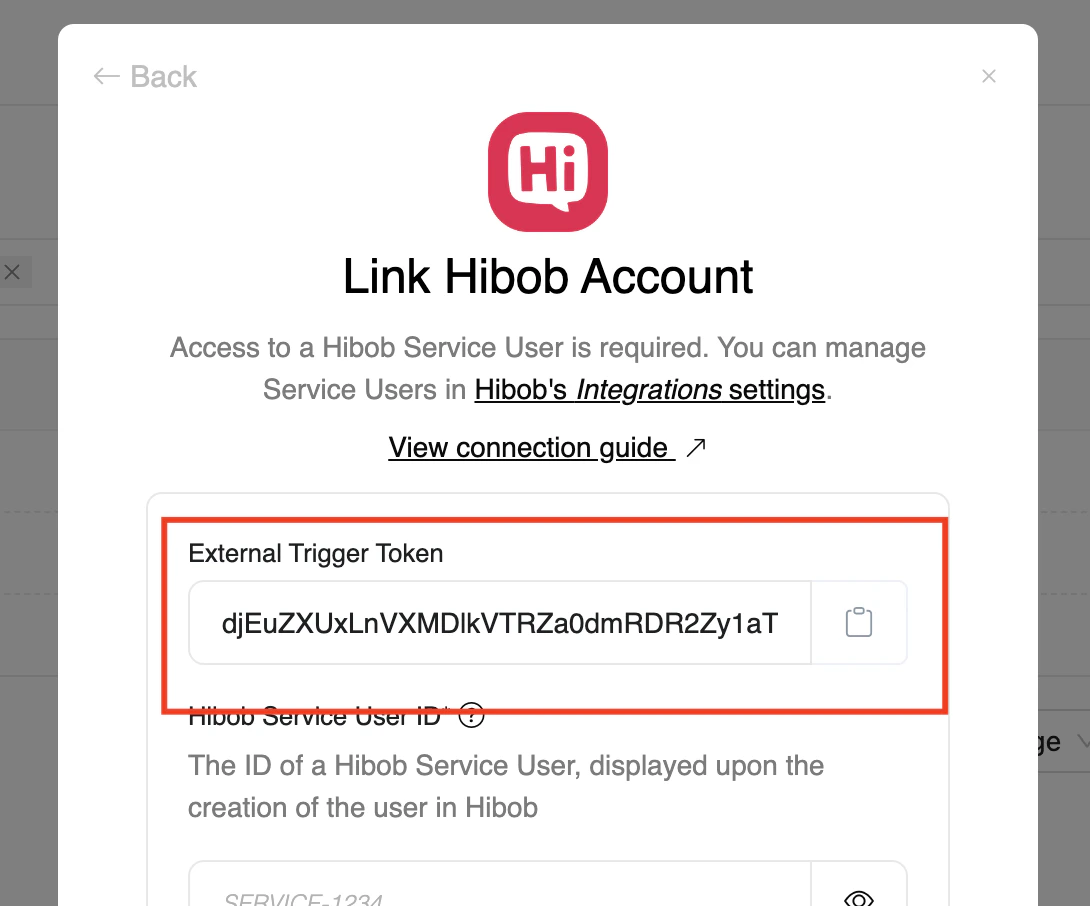
From the StackOne hub, you will receive the `External Trigger Token` needed to enable the Hibob Time-off webhook.
 ## To enable Time-off Webhook events
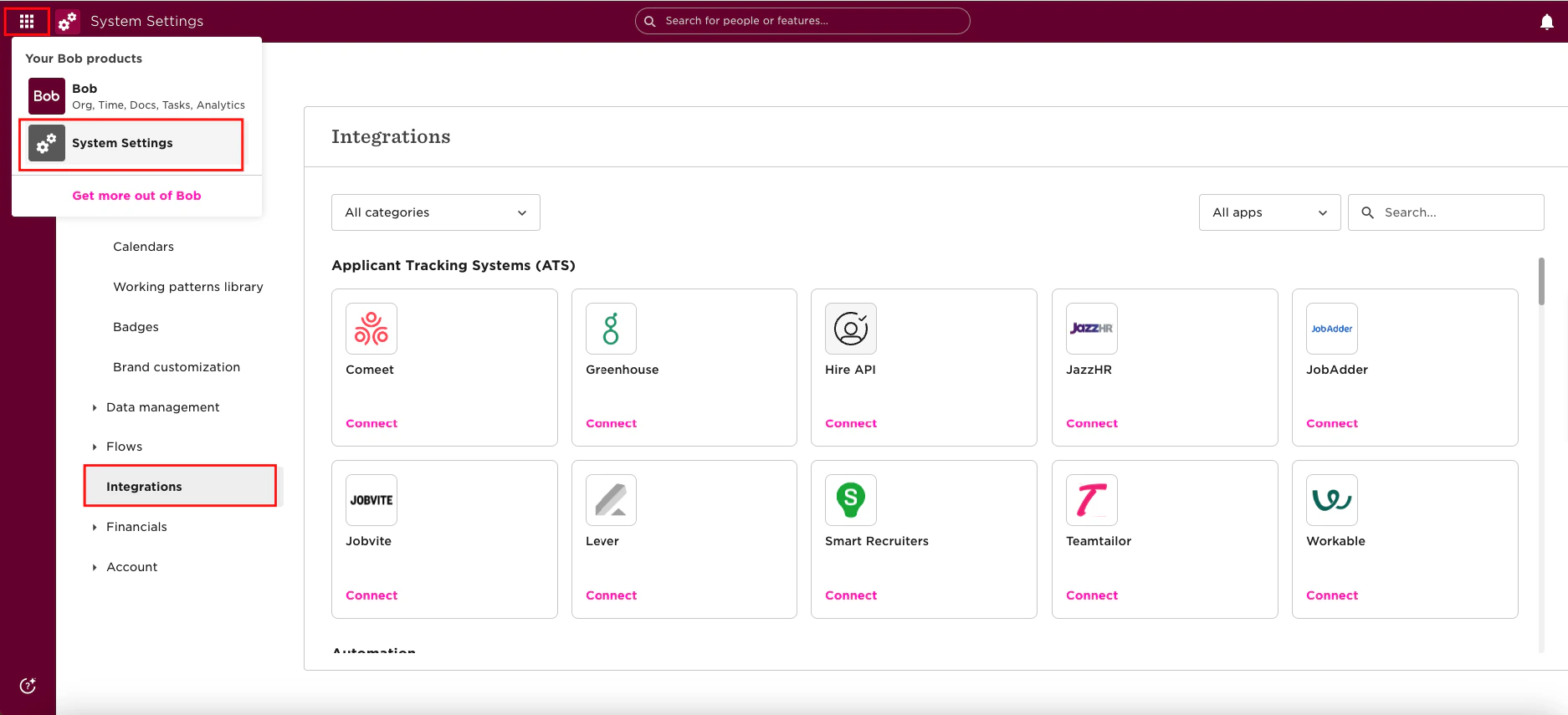
Please navigate to the `Hibob` Dashboard, click on `Menu`, select `System Settings`, and then click on `Integrations`.
## To enable Time-off Webhook events
Please navigate to the `Hibob` Dashboard, click on `Menu`, select `System Settings`, and then click on `Integrations`.
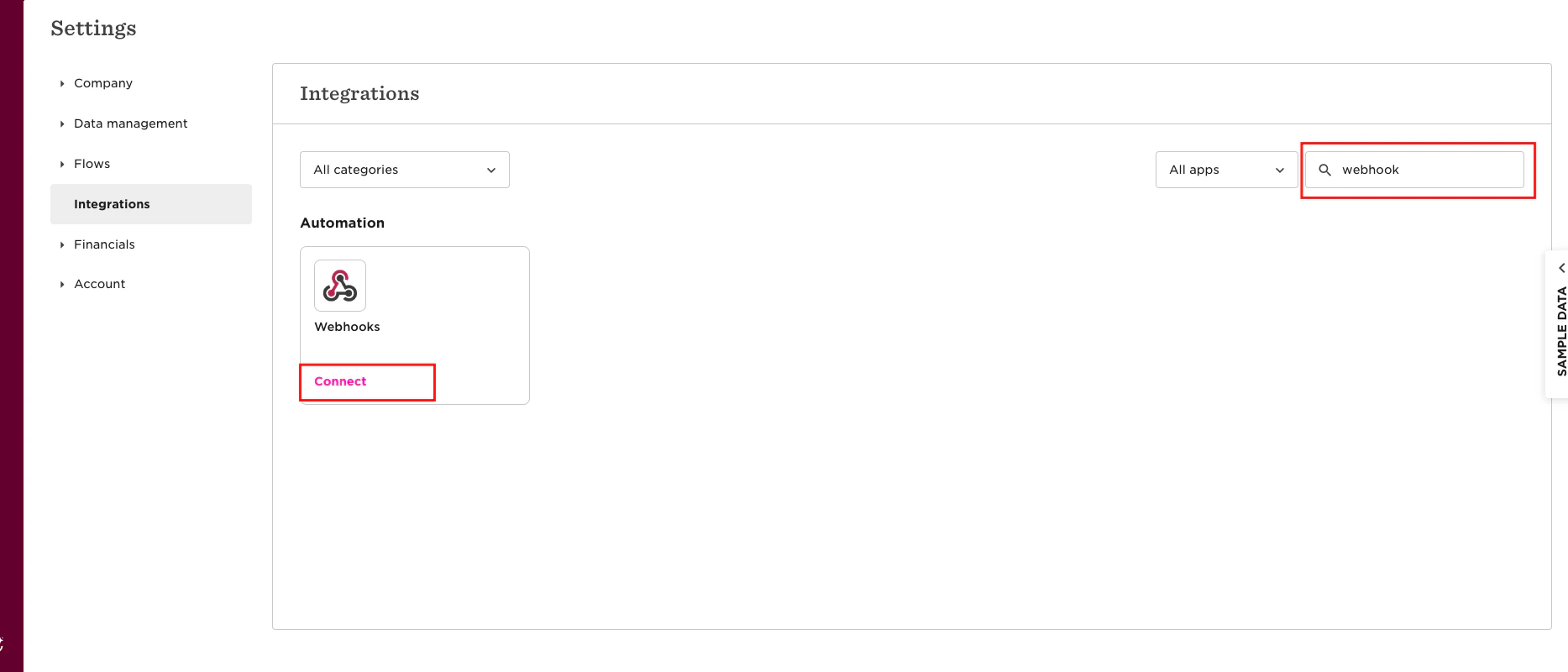
 Search for the `webhook` in the search bar and click the `Connect` button.
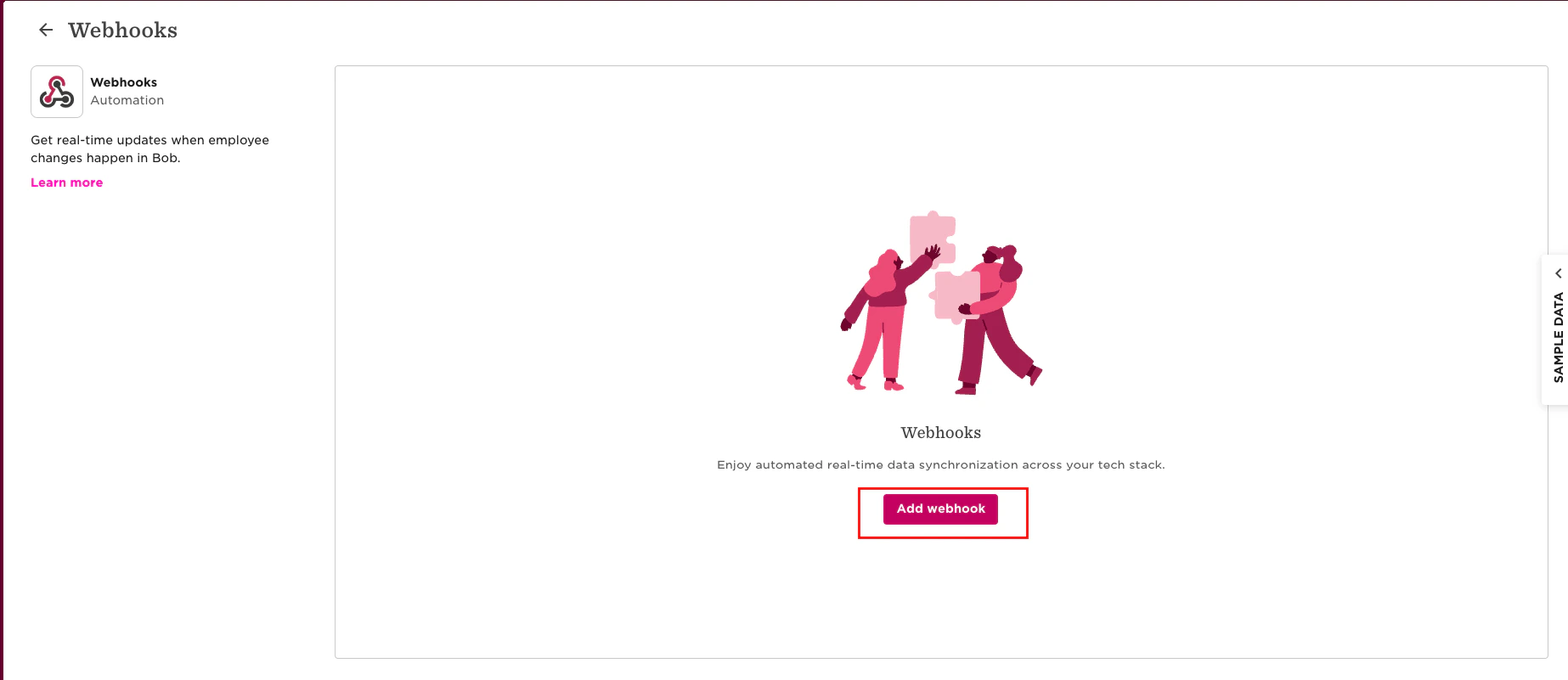
 The following screen will appear as shown below. To add the webhook, click the` Add Webhook` button.
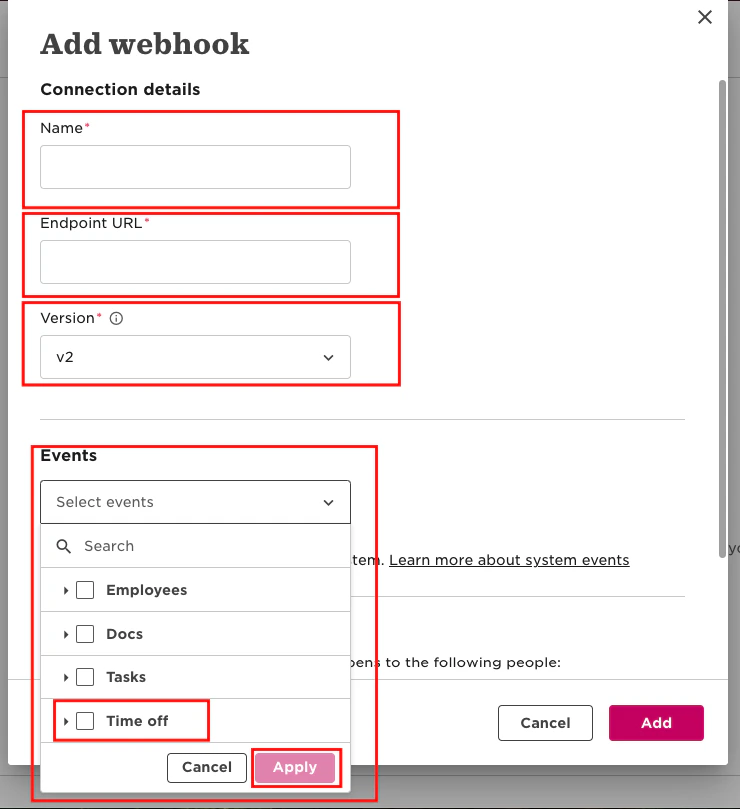
 Please provide the required details to configure the webhook for `time-off` events:
* **Name**: Enter the webhook name.
* **Endpoint URL**: Use the following base URL and append your external trigger token from StackOne Hub as follows:
`https://api.stackone.com/external-trigger/hibob?externalTriggerToken=`
* **Version**: Select the webhook version.
* **Events**: Choose the time-off event types.
Please provide the required details to configure the webhook for `time-off` events:
* **Name**: Enter the webhook name.
* **Endpoint URL**: Use the following base URL and append your external trigger token from StackOne Hub as follows:
`https://api.stackone.com/external-trigger/hibob?externalTriggerToken=`
* **Version**: Select the webhook version.
* **Events**: Choose the time-off event types.
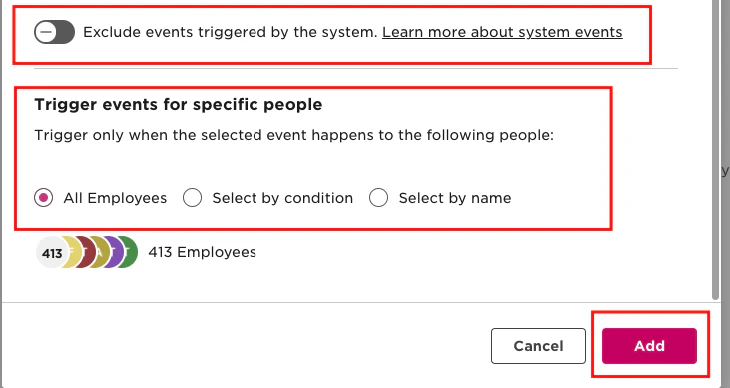
 Check the Exclude Event checkbox if you don’t want to fetch system-triggered events.
Select the people for triggering the event, then click the `Add` button.
Check the Exclude Event checkbox if you don’t want to fetch system-triggered events.
Select the people for triggering the event, then click the `Add` button.
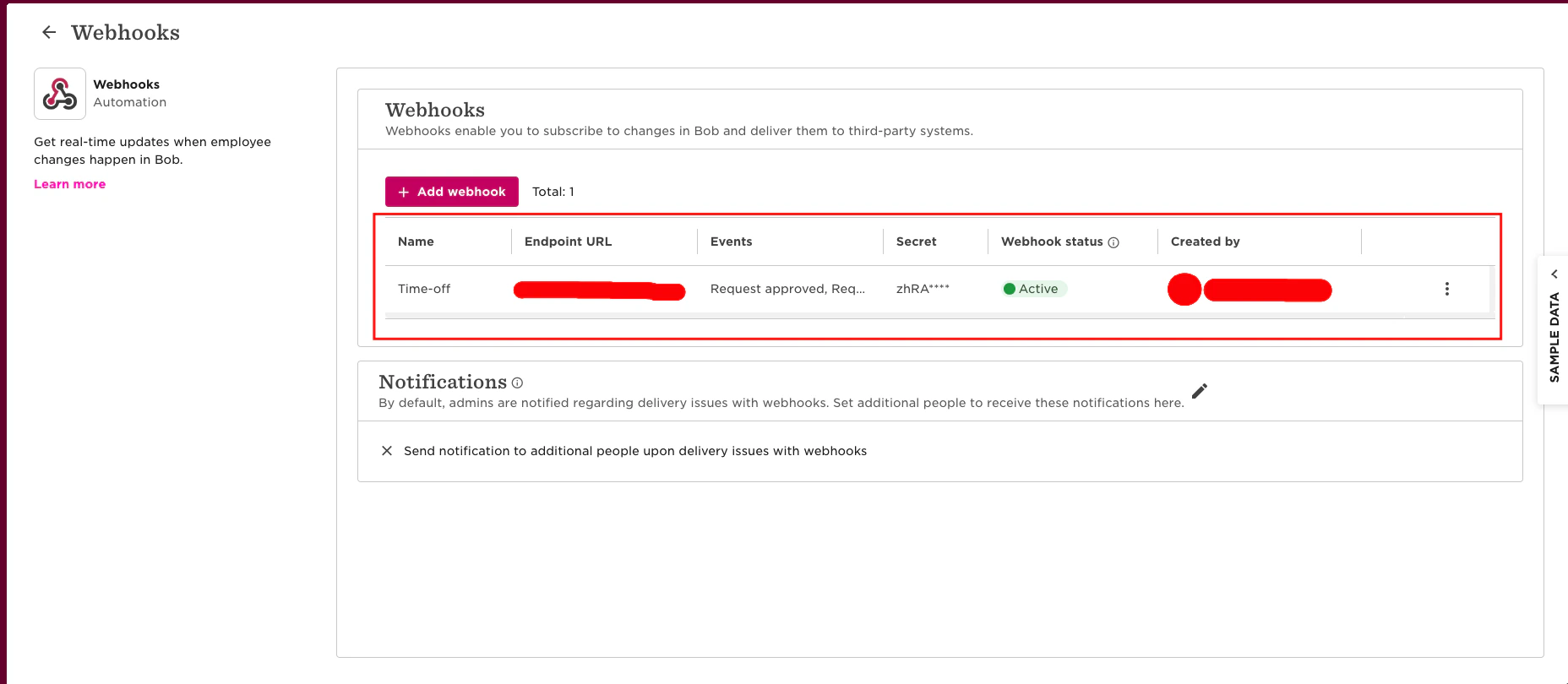
 The following screen will appear as shown below once you have successfully configured the webhook.
 ## Useful Links
[https://apidocs.hibob.com/reference/time-off-webhook-events](https://apidocs.hibob.com/reference/time-off-webhook-events)
## Useful Links
[https://apidocs.hibob.com/reference/time-off-webhook-events](https://apidocs.hibob.com/reference/time-off-webhook-events)